The SO-101 Robot Arms
For this module, we will be writing code to calculate the inverse kinematics for our SO-101 robot arms using a geometric approach. We will derive the solution, verify it in simulation, verify it on hardware, and then use it to repeat the same “Pick and Place” maneuver from Lab 6 but without needing pre-determined joint configurations. The goal is to pick up two separate blocks and stack them on top of each other using a single inverse kinematics function that you build up throughout this module.
This module is intentionally open-ended. Each step gives you the goal and the expected result. Try working it out on your own first, and open the Hint buttons only if you get stuck. Hints become more specific as you go, and the last hint in a step usually gives you structured starter code.
Outline
- Assignment Part 0: Set Up the Robot Model
- Assignment Part 1: Derive the Inverse Kinematics
- Assignment Part 2: Test the Inverse Kinematics in Simulation
- Assignment Part 3: Test the Inverse Kinematics on Hardware
- Assignment Part 4: Pick and Place Using Inverse Kinematics
- Suggested Improvements
- Submission Details
Assignment Part 0: Set Up the Robot Model
This module uses the following drawing as our model of the robot. All of the inverse kinematics and expected results in this module are based on these frames.
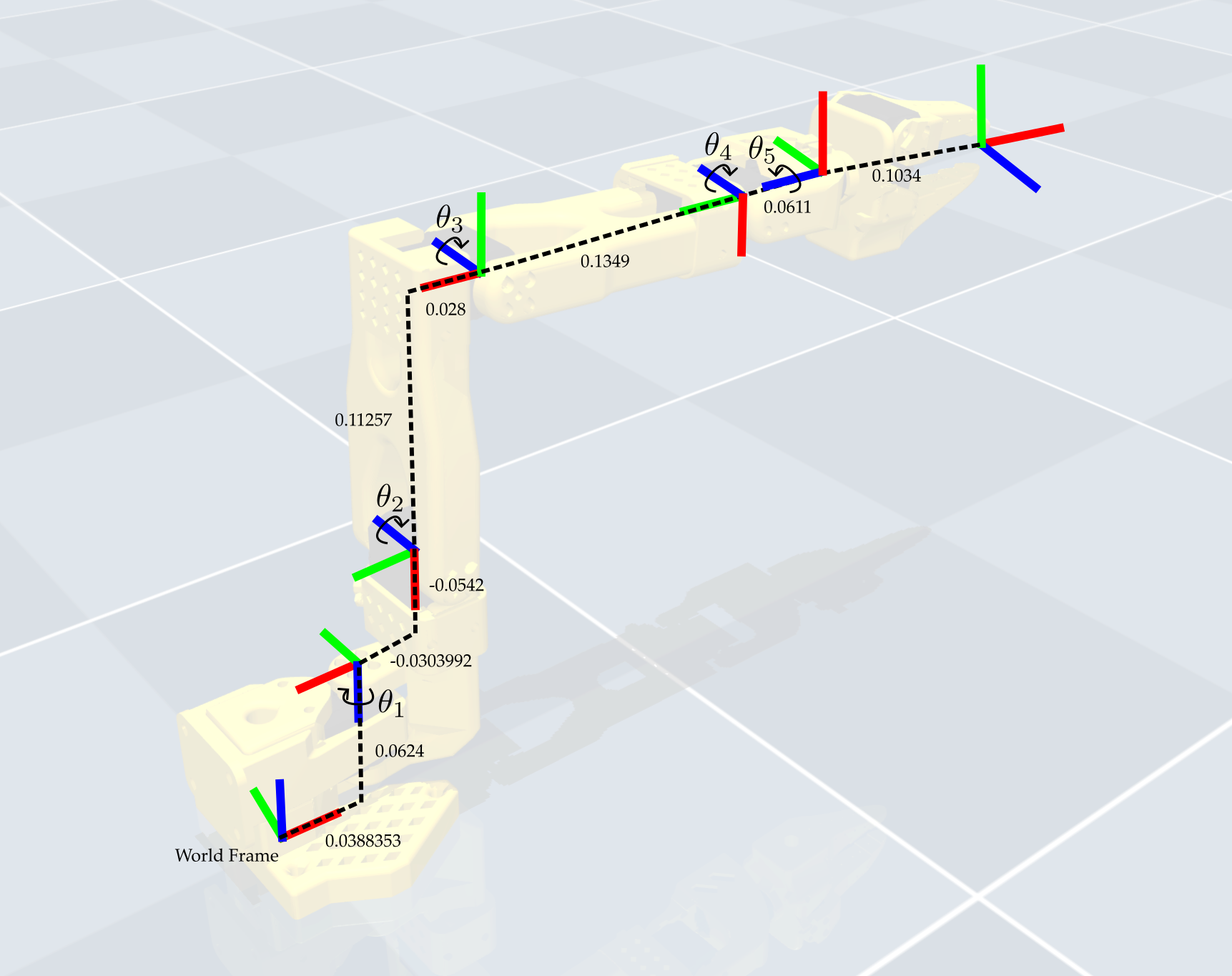
Every SO-101 arm in the lab is mounted on a 3/16” metal base, which raises the robot 0.0047625 m above the table and acrylic grid. We will include this height in our model so that all heights are measured from the table.
Note that the end-effector frame in this diagram has the same orientation as the frame at joint 5, so when the gripper is pointed downwards it lines up with the world frame. This frame is located on the wrist roll axis, which is centered between the jaws when the gripper is fully closed. However, only one of the jaws moves when the gripper opens and closes, so a block held in the gripper will sit slightly off-center from this frame. We will account for this offset in Part 1a.
Update Your Code
Before moving on, make sure that your code matches this model. Depending on how you completed Lab 6, you may have already done some of these steps.
-
End-effector frame: Make sure that
get_g5tinso101_forward_kinematics.pymatches the drawing. It should only be a translation from joint 5, with no rotation. If you used a different frame in Lab 6, including the optional offset frame, switch to this one.def get_g5t(): displacement = (0, 0, -0.1034) rotation = np.eye(3) pose = np.block([[rotation, np.array(displacement).reshape(3,1)], [0, 0, 0, 1]]) return pose -
Metal base in the forward kinematics: Add the base height to
get_gw1inso101_forward_kinematics.py:BASE_HEIGHT = 0.0047625 # meters, 3/16 in metal base under the robot def get_gw1(theta1_deg): displacement = (0.0388353, 0.0, BASE_HEIGHT + 0.0624) rotation = Rz(180) @ Rx(180) @ Rz(theta1_deg) pose = np.block([[rotation, np.array(displacement).reshape(3,1)], [0, 0, 0, 1]]) return pose -
Metal base in simulation: The MuJoCo model does not include the metal base, so raise the robot by the same amount in your simulation scripts right after loading the model. The robot will appear to float slightly above the floor, which is expected.
m = mujoco.MjModel.from_xml_path('model/scene.xml') m.body('base').pos[2] = BASE_HEIGHT # raise the robot to match the metal base d = mujoco.MjData(m) -
Old target corrections: If your code already shifts the target position (for example, by subtracting 0.015 from the z-coordinate), remove that code. The
get_gripper_targetfunction in Part 1a will handle this. -
Hardware code: Your
hardware_codefolder needs the same model. Copy your updatedso101_forward_kinematics.pyinto this folder, replacing any older copy. We will do the same for your inverse kinematics in Part 3.
The model above is a simplification, and it is all that you need for this module. If you would like a challenge, here are some more complicated approaches that you can try on your own:
- Use the optional end-effector frame from Lab 6 on the inside edge of the fixed jaw. This makes it easier to align the gripper to the edge of a block, but since the frame is no longer on the wrist roll axis, the arm no longer points directly at the target when solving for $\theta_1$.
- Include the small offsets from the robot model that the drawing leaves out, such as the height difference of about 5 mm between the elbow and the wrist.
- Grasp blocks at any rotation about the z-axis, rather than only blocks that are aligned with the grid. This requires updating your solution for $\theta_5$ and your offset from the center of the block.
Assignment Part 1: Derive the Inverse Kinematics
1a) Set up Inverse Kinematics Functions
First, write a helper script named so101_inverse_kinematics.py that takes in a desired tool frame position and orientation and returns the corresponding joint configuration. The orientation defaults to the identity (a vertical grasp), so the rest of this module can call the function with only a position. We will populate this script with all zeros to start:
import numpy as np

def get_inverse_kinematics(target_position, target_orientation=np.eye(3)):
    "Geometric appraoch specific to the so-101 arms"

    # Initialize the joint configuration dictionary
    joint_config = {
        'shoulder_pan': 0.0,
        'shoulder_lift': 0.0,
        'elbow_flex': 0.0,
        'wrist_flex': 0.0,
        'wrist_roll': 0.0,
        'gripper': 0.0
    }

    return joint_config
Next, we need to account for where the block sits relative to the end-effector frame, which requires two offsets:
- In the x-direction: For a vertical grasp, the tool frame is aligned with the world frame, and the fixed jaw is on the $-x$ side of the end-effector frame, a distance $d = 0.0079$ m from the wrist roll axis. The fixed jaw does not move, so it needs to line up with the $-x$ edge of the block.
- In the z-direction: The end-effector frame is located at the tips of the jaws. If we sent this frame to the center of the block, the jaws would only reach the middle of the block. Lowering the target by half of the block height lets the jaws surround the block.
Since our blocks are cubes with width $w$, the target position that we send to our inverse kinematics is:
\[p_{target} = p_{block} - \begin{bmatrix} w/2 - d \\ 0 \\ w/2 \end{bmatrix}\]Add the following helper function to your so101_inverse_kinematics.py script. Whenever we want to reach a block, we will specify the center of the block and use this function to compute the end-effector target. If the fixed jaw clips the block as it moves down, slightly increase the x offset.
BLOCK_WIDTH = 0.0285  # meters (1.125 inches)
FIXED_JAW_OFFSET = 0.0079  # meters, from the wrist roll axis to the inner face of the fixed jaw

def get_gripper_target(block_position):
    "Offset from the center of the block so that the jaws surround the block"
    gripper_target = list(block_position)
    gripper_target[0] -= BLOCK_WIDTH / 2 - FIXED_JAW_OFFSET
    gripper_target[2] -= BLOCK_WIDTH / 2
    return gripper_target
Then, we will write a test simulation script named run_mujoco_simulation_testIK.py that will use these functions to move the robot to a desired position. The following code provides a starting point for this script:
import time
import mujoco
import mujoco.viewer
from so101_mujoco_utils import set_initial_pose, send_position_command, move_to_pose, hold_position
from so101_forward_kinematics import BASE_HEIGHT
from so101_inverse_kinematics import get_inverse_kinematics, get_gripper_target
import numpy as np

m = mujoco.MjModel.from_xml_path('model/scene.xml')
m.body('base').pos[2] = BASE_HEIGHT  # raise the robot to match the metal base
d = mujoco.MjData(m)

# Helper Function to show a cube at a given position and orientation
def show_cube(viewer, position, orientation, geom_num=0, halfwidth=0.01425):
    mujoco.mjv_initGeom(
        viewer.user_scn.geoms[geom_num],
        type=mujoco.mjtGeom.mjGEOM_BOX,
        size=[halfwidth, halfwidth, halfwidth],
        pos=position,
        mat=orientation.flatten(),
        rgba=[1, 0, 0, 0.2]
    )
    viewer.user_scn.ngeom = 1
    viewer.sync()
    return

# Initial joint configuration at start of simulation
initial_config = {
    'shoulder_pan': 0.0,
    'shoulder_lift': 0.0,
    'elbow_flex': 0.00,
    'wrist_flex': 0.0,
    'wrist_roll': 0.0,
    'gripper': 0
}
set_initial_pose(d, initial_config)
send_position_command(d, initial_config)

# Start simulation with mujoco viewer
with mujoco.viewer.launch_passive(m, d) as viewer:

  # Specify the position of the center of the cube to be picked up
  block_position = [0.2, 0.2, 0.014]

  # Add a cube as a site for visualization
  show_cube(viewer, block_position, np.eye(3))

  # Offset the target so that the jaws surround the cube
  desired_position = get_gripper_target(block_position)

  # First send the robot to a higher position with the gripper open
  joint_configuration = get_inverse_kinematics(desired_position)
  move_to_pose(m, d, viewer, joint_configuration, 1.0)

  # Hold position for 10 seconds
  hold_position(m, d, viewer, 10.0)
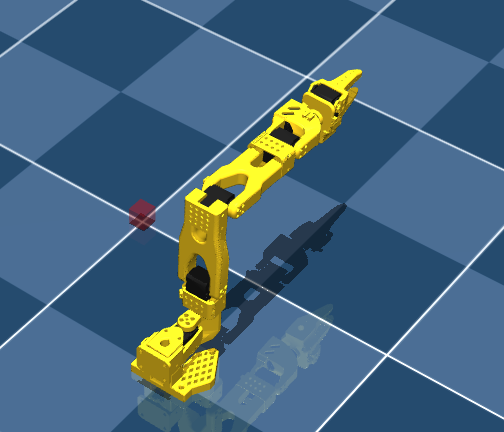
If you run this script now, the robot will not move since the inverse kinematics function is not yet implemented, but you should see the following:
1b) Solve for $\theta_1$
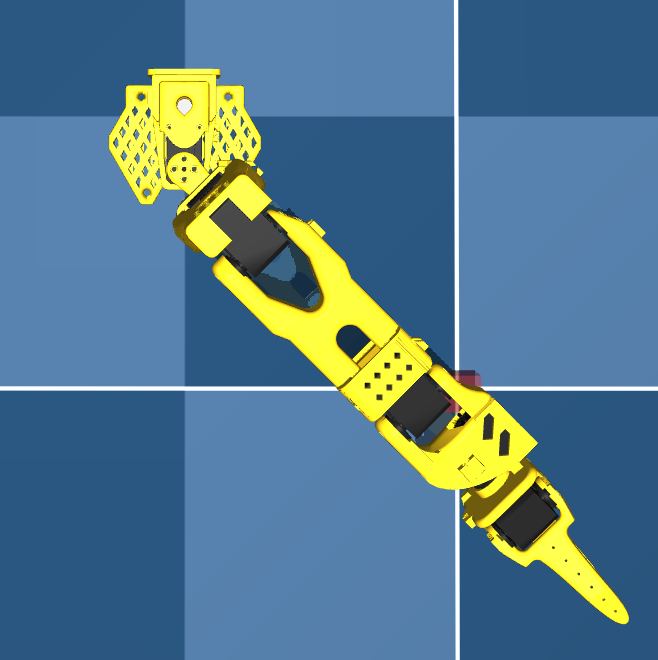
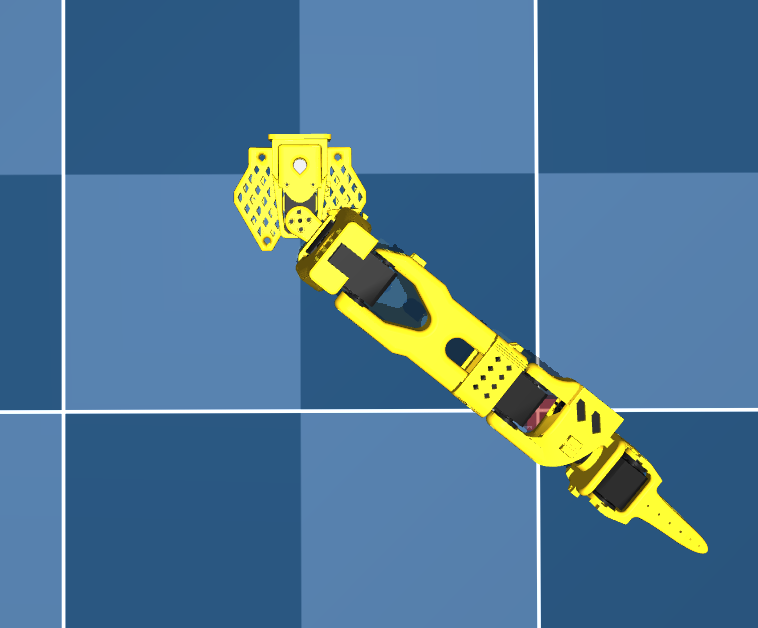
Solve for $\theta_1$, the joint angle that rotates the arm to face the target position. If you do this correctly, you should see the manipulator arm line up exactly with the position of the block:
Hint 1: Approach
Project the desired end-effector position onto the ground plane (i.e., the x-y plane) and use trigonometry to solve for $\theta_1$.
Hint 2: Diagram
Use the diagram below:
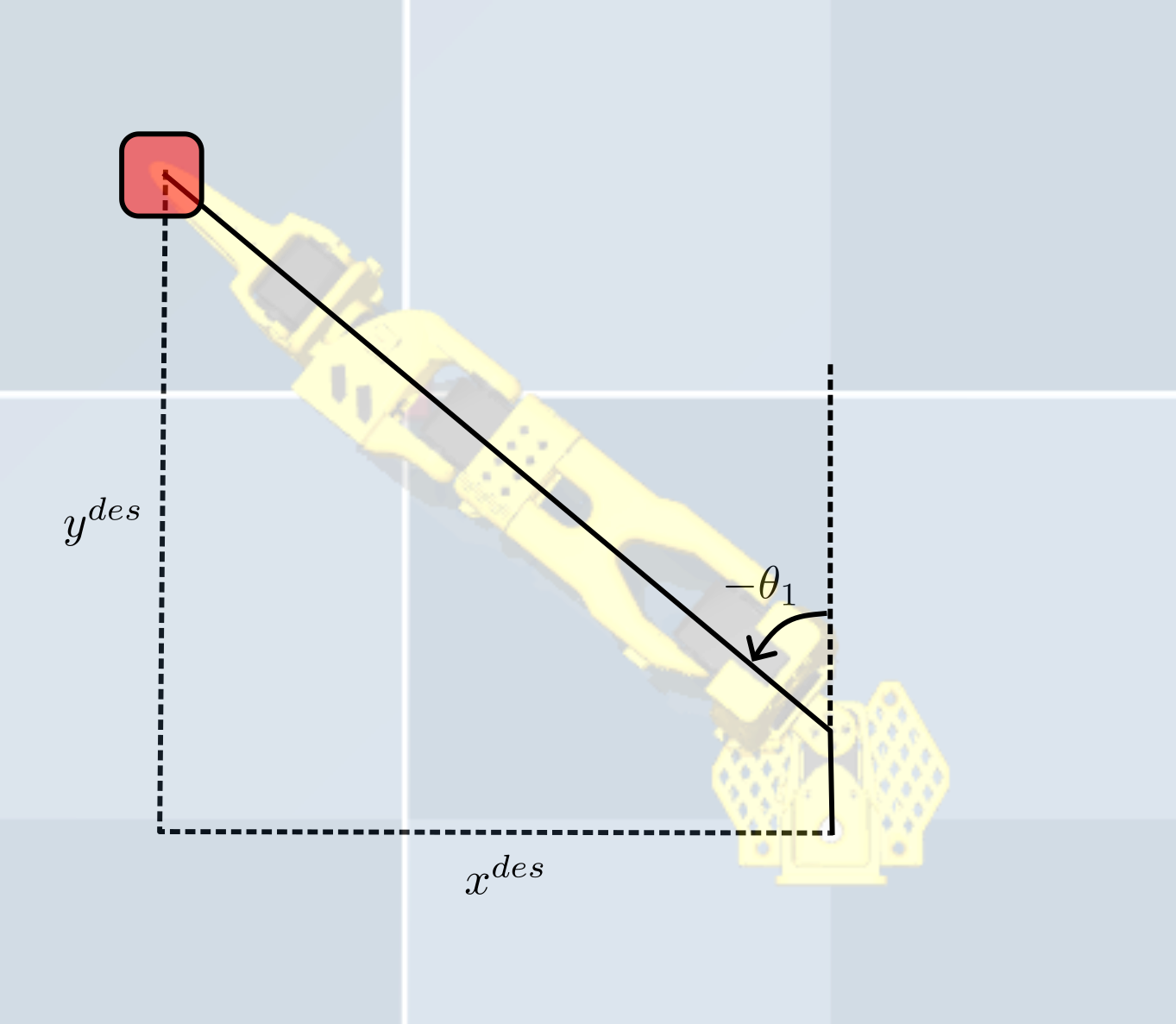
Be careful, if you do not account for the frame’s offset in the x-axis correctly, the robot will not line up exactly with the block!
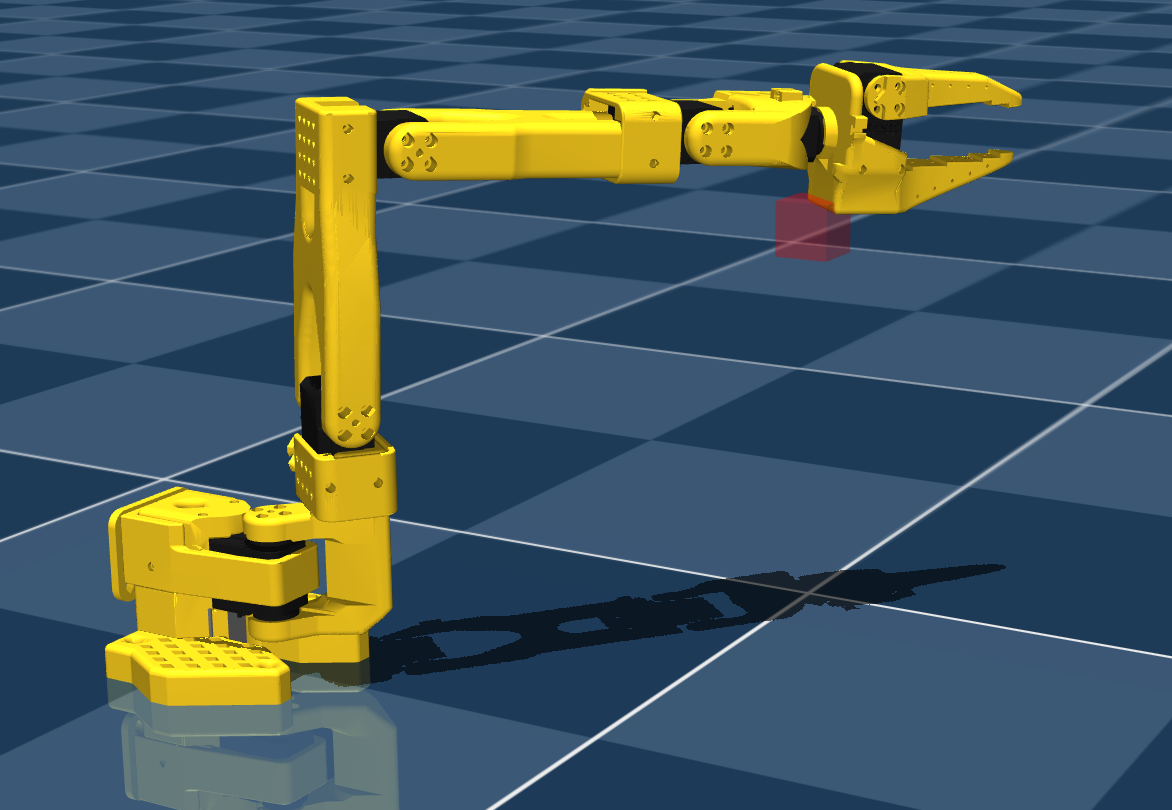
1c) Solve for Desired Position of the Wrist Frame
Once $\theta_1$ is solved, the next step is to solve for the desired position of the wrist frame (i.e., the center of the frame attached at joint 4) assuming that we want to grasp the object from above (i.e., assuming that the desired end-effector orientation will only change with respect to the z-axis). Write a helper function in your so101_inverse_kinematics.py script named get_wrist_flex_position that computes the desired wrist position and orientation based on the desired end-effector position.
You can test whether or not this worked properly by displaying a cube at the calculated wrist position in your simulation script. If done correctly, you should see the following:
Hint 1: Equation
The desired wrist frame can be found using the equation
\[g_{w4} = g_{wt} g_{4t}^{-1}\]where $g_{wt}$ is the desired target position in the world frame, and $g_{4t}$ is computed as $g_{4t} = g_{45}(0) g_{5t}$ using the same helper functions as in our forward kinematics from Lab 6.
Hint 2: Starter code
The following code snippet provides a starting point for this function:
def get_wrist_flex_position(target_position):
    gwt = ?
    g4t = ?
    gw4 = gwt @ np.linalg.inv(g4t)
    wrist_flex_position = ?
    wrist_flex_orientation = ?
    return wrist_flex_position, wrist_flex_orientation
Which will then be evaluated in your main inverse kinematics function as follows:
target_wrist_position, target_wrist_orientation = get_wrist_flex_position(target_position)
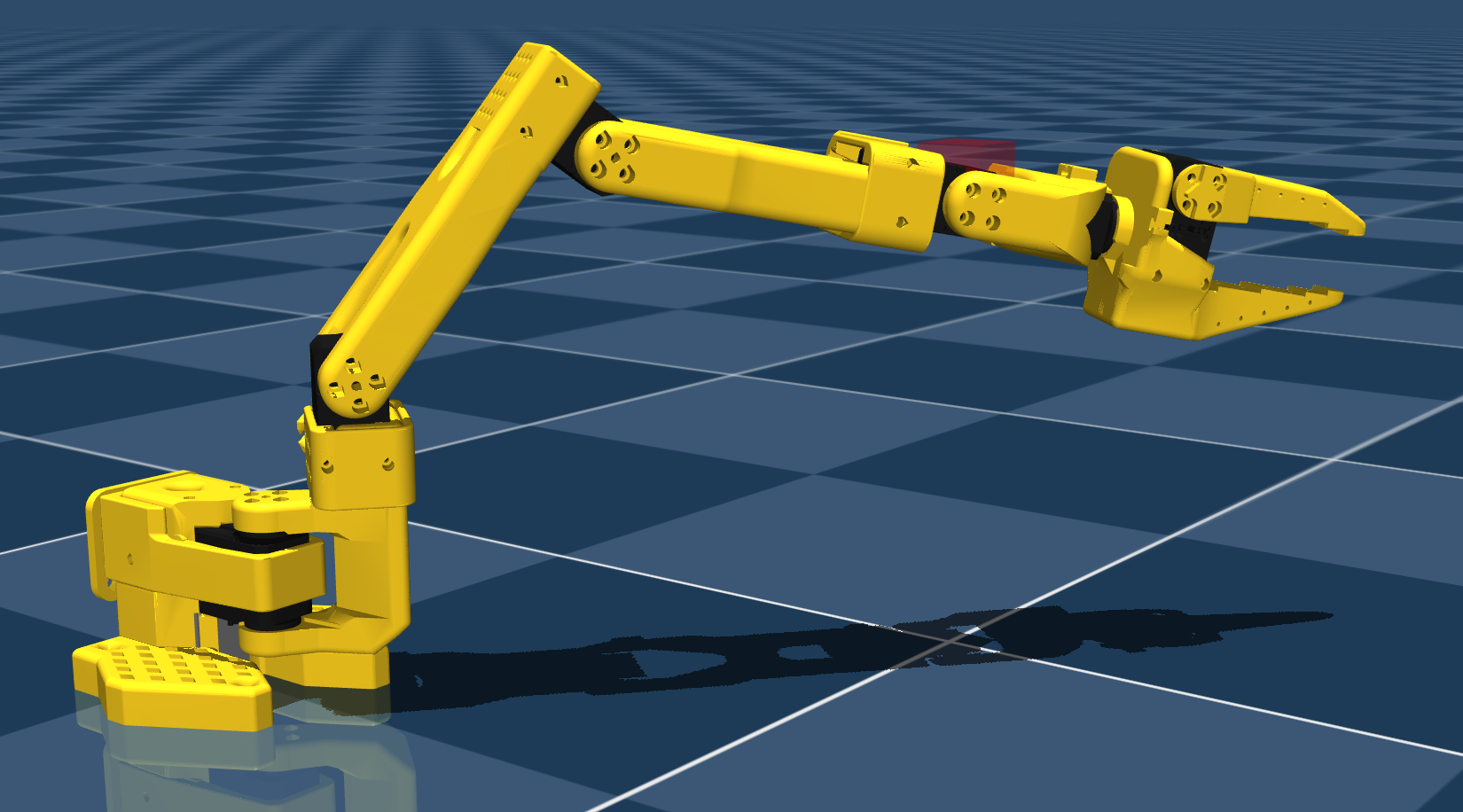
1d) Solve for $\theta_2$ and $\theta_3$
Now your job is to solve for $\theta_2$ and $\theta_3$ to position the wrist frame at the desired wrist position calculated in the previous step. Compute the position of joint 2 using your forward kinematics functions (get_gw1 and get_g12) rather than reading it from the drawing, so that the metal base is included. If done correctly, you should see the following result in simulation:
Hint 1: Approach
You can use a similar geometric approach as in Lab 6 to solve for these two joint angles. Start by drawing out the manipulator arm in the plane containing the links.
Hint 2: Triangle
Draw the triangle formed between the frames of joints 2, 3, and 4. Label the lengths of each side of the triangle and use the law of cosines to solve for the two joint angles.
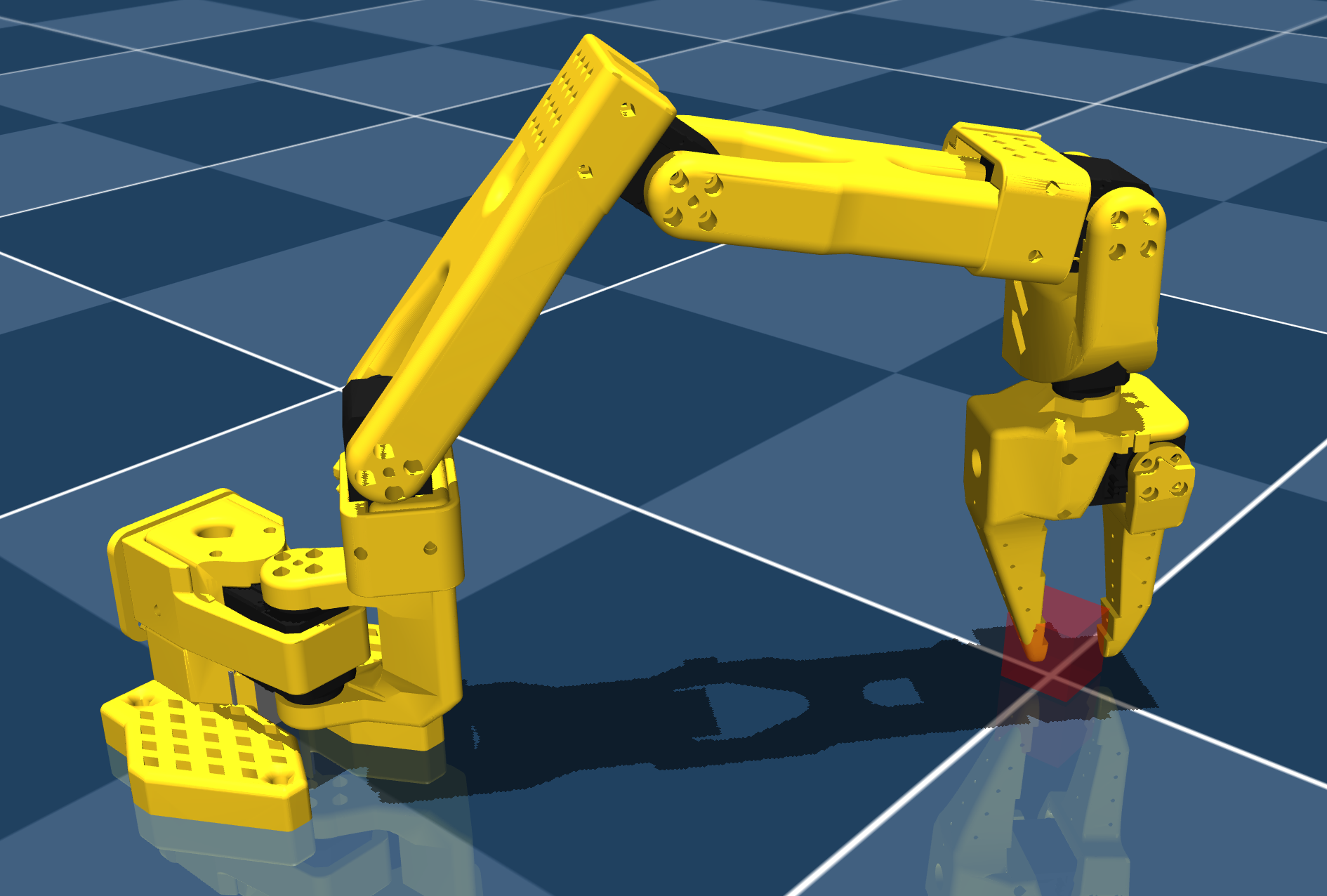
1e) Solve for $\theta_4$
Next, solve for $\theta_4$ in order to position the end-effector such that $z_{tool}$ is aligned with the world z-axis. If done correctly, you should see the following result in simulation:
Hint 1: Geometric approach
This can be done by drawing a vertical line on your triangle diagram from part 1d and solving for the corresponding angle.
Hint 2: Forward kinematics approach
You can also do this by first calculating the current orientation of the wrist frame using forward kinematics, and then calculating the difference in orientation between the current wrist frame and the desired wrist frame. Since we are only concerned with aligning the z-axes, you can project both z-axes onto the x-y plane and calculate the angle between them. This angle will correspond to $\theta_4$.
1f) Solve for $\theta_5$
The last step is to solve for $\theta_5$ in order to align the end-effector orientation with the desired target orientation. If done correctly, you should see the following result in simulation: 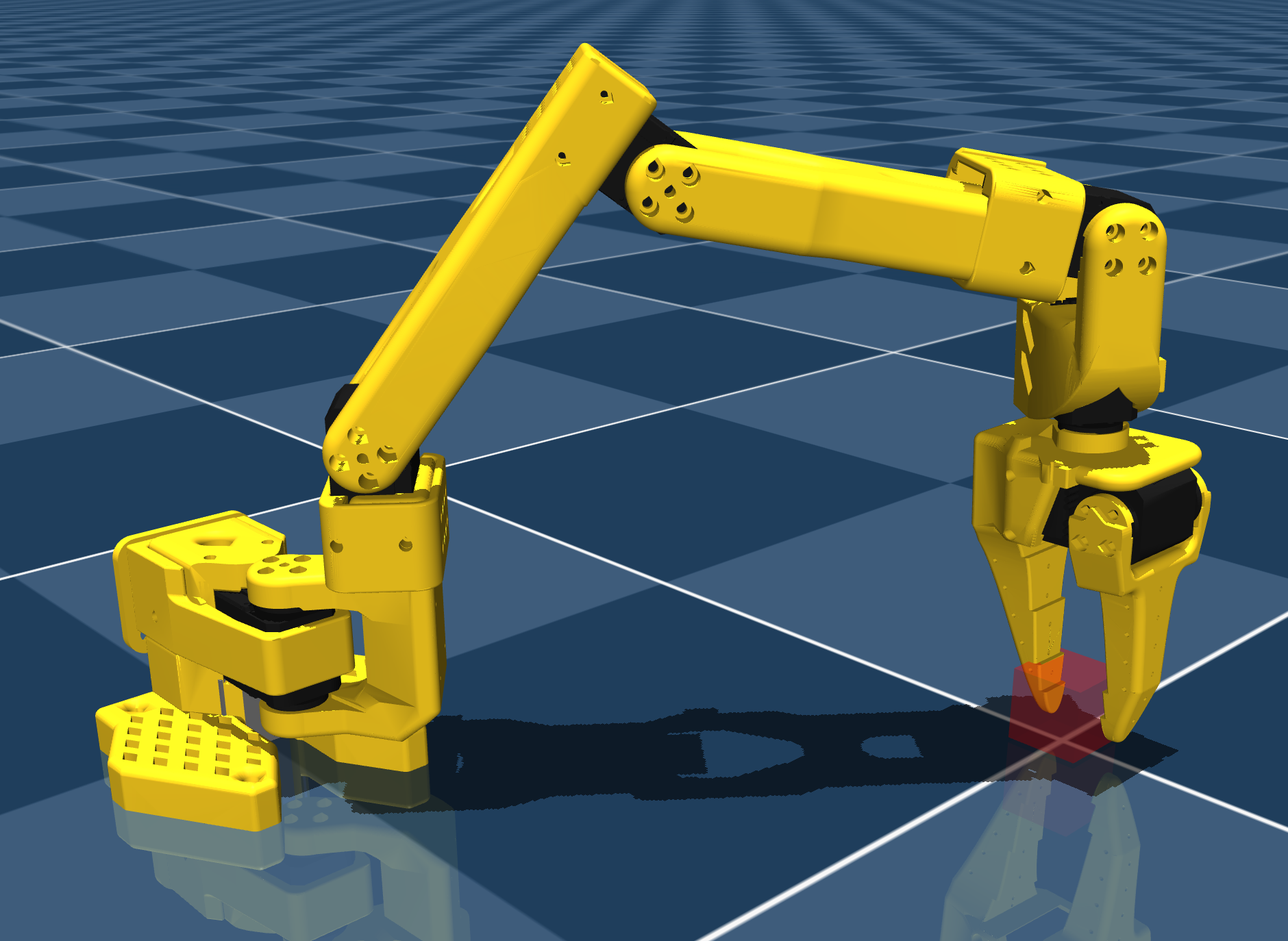
Hint 1: Approach
You can either do this using trigonometry or we can make the simple observation that the only axes influencing the rotation about the z-axis are $\theta_1$ and $\theta_5$.
Hint 2: Solution
If we assume that our desired orientation is zero, we can use $ \theta_5 = -\theta_1 $.
However, since $\theta_5$ has the opposite joint axis as $\theta_1$, we need to negate this value again to get the correct joint angle. Therefore, our final expression is: \(\theta_5 = \theta_1\).
Assignment Part 2: Test the Inverse Kinematics in Simulation
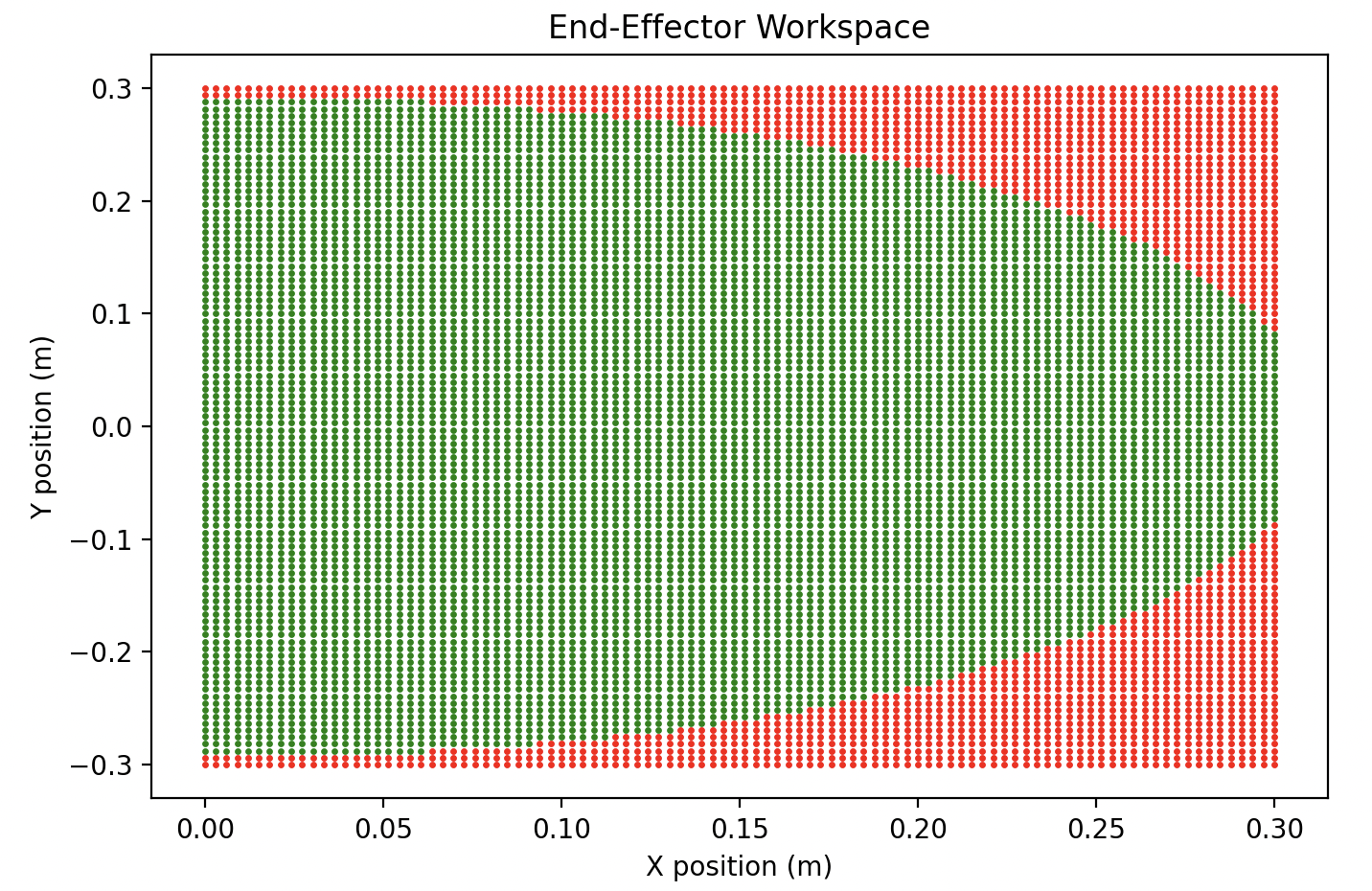
To test your inverse kinematics solution, we will modify the run_mujoco_simulation_testIK.py script to move the robot to various random desired target positions. This will first require understanding the workspace of the SO-101 robot arm with a vertical grasp.
2a) Understand the Workspace
Determine which target positions at the height of a block ($z = 0.014$) the robot can reach with a vertical grasp, and use this to choose ranges of x and y positions for your testing.
Hint 1: Approach
We can obtain the workspace by looping through target positions and analyzing whether or not the inverse kinematics solution returns NaN values for the joint angles. If the solution returns NaN, then the target position is outside of the robot’s workspace. Remember to use get_gripper_target on each block position before solving.
Hint 2: Workspace plot
2b) Test Random Target Positions
Once you understand the workspace, modify your run_mujoco_simulation_testIK.py script to continually sample random target positions within the workspace, display each target, and move the robot to it using your inverse kinematics solution.
Your simulation should look something like this:
Hint 1: Approach
Use np.random.uniform with the x and y ranges from your workspace analysis. Inside your viewer loop, display the block with show_cube, offset it using get_gripper_target, solve for the joint configuration, then call move_to_pose and hold_position.
Hint 2: Starter code
# Helper function to obtain a random target position from a given range
def get_random_position():
    x_pos_range = [X, X] #taken from workspace analysis
    y_pos_range = [X, X] #taken from workspace analysis
    x = np.random.uniform(x_pos_range[0], x_pos_range[1])
    y = np.random.uniform(y_pos_range[0], y_pos_range[1])
    return [x, y, 0.014]

# Start simulation with mujoco viewer
with mujoco.viewer.launch_passive(m, d) as viewer:

  # Pause for 10 seconds in order to make screen recording easier
  time.sleep(10)

  while viewer.is_running():

    for i in range(5):
      block_position = get_random_position()
      desired_orientation = np.eye(3)

      # Add a cylinder as a site for visualization
      show_cube(viewer, block_position, desired_orientation)

      # Offset the target so that the jaws surround the cube
      desired_position = get_gripper_target(block_position)

      # Get the inverse kinematics solution
      joint_configuration = get_inverse_kinematics(desired_position, desired_orientation)

      # Move the robot to the desired pose
      move_to_pose(m, d, viewer, joint_configuration, 1.0)

      # Hold for two seconds for easy visualization
      hold_position(m, d, viewer, 2.0)
Assignment Part 3: Test the Inverse Kinematics on Hardware
Once your inverse kinematics are working in simulation, the next step is to verify that they are accurate on hardware. The hardware helper functions in so101_utils.py use the same joint dictionary (in degrees) as your simulation helpers, so your so101_inverse_kinematics.py script can be used without any changes. Copy your latest so101_inverse_kinematics.py and so101_forward_kinematics.py into your hardware_code folder.
3a) Move to a Known Position
Write a simple script that moves the robot to a known position, and compare it to the actual position using the acrylic grid. Below is an example script that moves the robot to a specified position using your inverse kinematics function.
import time
from so101_utils import load_calibration, move_to_pose, hold_position, setup_motors
from so101_inverse_kinematics import get_inverse_kinematics

# CONFIGURATION VARIABLES
PORT_ID = "/dev/tty.usbmodem5A460848371" # REPLACE WITH YOUR PORT!
ROBOT_NAME = "follower-1"

# Set
'''
This is the format of the goal position dictionary used for goal position sync write.
The gripper command takes values of 0-100, while the other joints take values of degrees, based on
the settings specified in the bus initialization.
'''
desired_ee = [0.2, 0.0, 0.03]  # x, y, z in meters
desired_configuration = get_inverse_kinematics(desired_ee)
move_time = 2.0  # seconds to reach desired position
hold_time = 10.0  # total time to hold at

# ------------------------
# Configure motors and load calibration:
calibration = load_calibration(ROBOT_NAME)
bus = setup_motors(calibration, PORT_ID)

# Record starting position
starting_pose = bus.sync_read("Present_Position")
print("Starting Pose:", starting_pose)

# Move to desired
move_to_pose(bus, desired_configuration, move_time)

# Hold position for "hold_time" seconds
hold_position(bus, hold_time)

# Move back to starting position
move_to_pose(bus, starting_pose, move_time)

# Before terminating the program, disable torque on the motors
bus.disable_torque()
You will know if the end-effector position is accurate if the gripper is centered over the specified end-effector position on the grid. Try a few different end-effector positions to determine if you’re constantly consist, sometimes consistent, or constantly off. If you have any issues, try the following troubleshooting steps:
3b) Adjust Acrylic Grid “Zero”
I’ve confirmed that our grids are accurate, but we can still correct for constant offsets (the same offset is observed for several different desired positions) by modifying the desired target position within the get_inverse_kinematics function call (in so101_inverse_kinematics.py). To do this, simply adjust the target_position variable before calculating the inverse kinematics, as shown below. For example, if the gripper is consistently too close to the table, you can raise the z-coordinate of your target position:
def get_inverse_kinematics(target_position, target_orientation=np.eye(3)):
    "Geometric appraoch specific to the so-101 arms"

    # Adjust the target position to account for a constant offset
    target_position = target_position.copy()
    target_position[0] -= 0.002 # Example offset of -2 mm in x

    ...
3c) Check Calibration
To check if your calibration is correct, you can command the robot arm to the “home” position (all joint angles set to zero) and see if the end-effector is in the expected location. If it is not, you may need to redo your calibration. When redoing your calibration, make sure to move each joint slowly and without over extending (or underextending!) the joint limits. The calibration process assumes the “zero” position as the middle of the joint limits achieved during calibration. So if you over extend a joint during calibration, the zero position will be offset. You can implement a calibration test by replacing the desired_configuraiton variable in the above code with the following:
desired_position = {
    'shoulder_pan': 0.0,   # degrees
    'shoulder_lift': 0.0,
    'elbow_flex': 0.0,
    'wrist_flex': 0.0,
    'wrist_roll': 0.0,
    'gripper': 0.0           # 0-100 range
}
As a reminder, the home position should look like this: 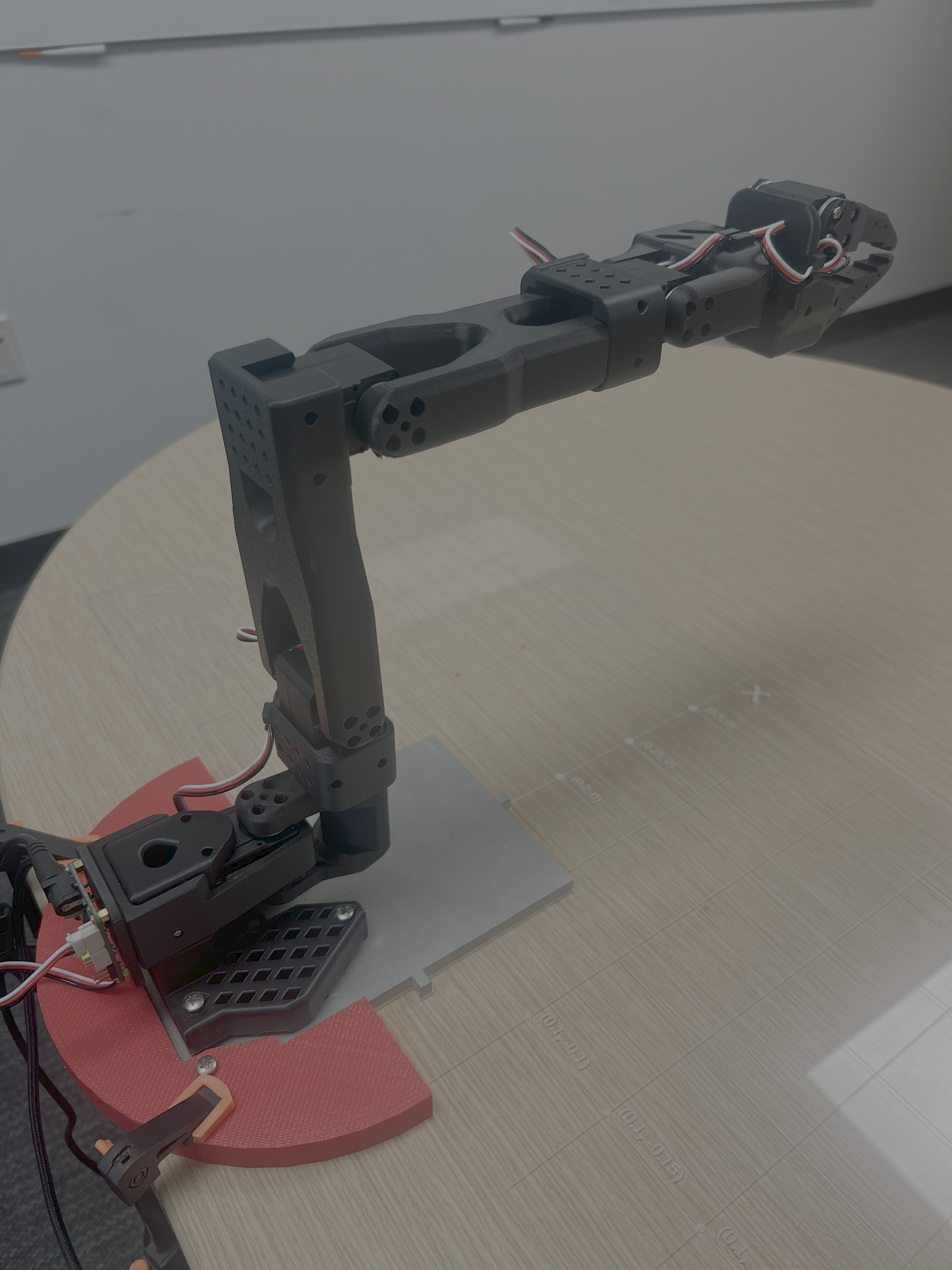
If any of the joints have a small offset even after recalibration, you can manually add an offset to the joint in the move_to_pose function within so101_utils.py. To do this, I recommend making a helper function called offset_config. For example, my manipulator arm needed to add 2 degrees to the shoulder_lift and subtract 4 degrees from the elbow_flex. Here is an example implementation of the offset_config function:
def offset_config(config):
    offset_dict = config.copy()
    offset_dict['shoulder_pan'] += 0.0
    offset_dict['shoulder_lift'] += 2.0 # Example offset of 2 degrees
    offset_dict['elbow_flex'] -= 4.0 # Example offset of -4 degrees
    offset_dict['wrist_flex'] += 0.0
    offset_dict['wrist_roll'] += 0.0
    offset_dict['gripper'] += 0.0
    return offset_dict
Then, you can call this function within move_to_pose before sending the command to the motors.
# Send command
offset_dict = offset_config(position_dict)
bus.sync_write("Goal_Position", offset_dict, normalize=True)
Remember that these offsets will need to be removed/changed if you redo your calibration or change manipulator arms!
3d) Check Tracking Error
If you are still having trouble getting accurate positioning even after recalibration, you can check if your error is due to a tracking error through plotting the desired and actual states during the movement. For example, you can create a new move_to_pose_with_logging function call that does the following:
import pandas as pd
def move_to_pose_with_logging(bus, desired_position, duration):
    start_time = time.time()
    starting_position = bus.sync_read("Present_Position")

    # Initialize log fields
    times = []
    targets = []
    actuals = []
    joint_names = list(desired_position.keys())

    while True:
        t = time.time() - start_time
        if t > duration:
            break

        # Interpolation factor [0,1] (make sure it doesn't exceed 1)
        alpha = min(t / duration, 1)

        # Interpolate each joint
        position_dict = {}
        for joint in desired_position:
            p0 = starting_position[joint]
            pf = desired_position[joint]
            position_dict[joint] = (1 - alpha) * p0 + alpha * pf

        # Send command
        bus.sync_write("Goal_Position", position_dict, normalize=True)

        # Store Actual Position
        present_pos = bus.sync_read("Present_Position")

        # Log time, target, and actual
        times.append(time.time())
        targets.append([position_dict[j] for j in joint_names])
        actuals.append([present_pos[j] for j in joint_names])

        # Sleep to achieve 50 Hz control loop
        time.sleep(0.02)

    # Convert to DataFrame
    df = pd.DataFrame({
        "time": times,
        **{f"target_{j}": [t[i] for t in targets] for i, j in enumerate(joint_names)},
        **{f"actual_{j}": [a[i] for a in actuals] for i, j in enumerate(joint_names)},
    })

    return df
Then, in your main function, you can plot this data after your robot executes using the following plot_data function call:
import numpy as np
import matplotlib.pyplot as plt

def plot_data(df):

    configuration = {
        'shoulder_pan': 0.0,
        'shoulder_lift': 0.0,
        'elbow_flex': 0.00,
        'wrist_flex': 0.0,
        'wrist_roll': 0.0,
        'gripper': 0
    }
    joint_limits = {
        'shoulder_pan': (-1.919, 1.919),
        'shoulder_lift': (-1.74, 1.74),
        'elbow_flex': (-1.69, 1.69),
        'wrist_flex': (-1.65, 1.65),
        'wrist_roll': (-2.74, 2.84),
        'gripper': (0, 100)
    }
    joint_names = [j for j in configuration.keys()]
    joint_limits = {j: (np.degrees(lim[0]), np.degrees(lim[1])) for j, lim in joint_limits.items()}

    # Plot target vs actual for each joint
    plt.figure(figsize=(10, 2 * len(joint_names)))
    for i, j in enumerate(joint_names):
        plt.subplot(len(joint_names), 1, i + 1)
        plt.plot(df["time"], df[f"target_{j}"], label=f"Target {j}")
        plt.plot(df["time"], df[f"actual_{j}"], label=f"Actual {j}", linestyle="--")
        plt.ylabel("Position")
        plt.legend(loc="upper right")
        plt.ylim(joint_limits[f"{j}"][0], joint_limits[f"{j}"][1])
    plt.xlabel("Time (s)")
    plt.suptitle("Target vs Actual Joint Positions")
    plt.tight_layout(rect=[0, 0.03, 1, 0.95])
    plt.show()
Note that if you wanted to plot the data over multiple different move_to_pose_with_logging calls, you can do this by appending the data frames as follows, using the get_random_position function from Part 2b:
alldata = pd.DataFrame()

for i in range(5):
    desired_position = get_random_position()
    joint_configuration = get_inverse_kinematics(desired_position)
    df = move_to_pose_with_logging(bus, joint_configuration, 2.0)
    alldata = pd.concat([alldata, df], ignore_index=True)
If your tracking error is large (a visible gap between the desired and actual positions), you may have an issue with your robot hardware or with the calibration of your robot. Talk to Prof. Tucker or a TA if you are having trouble reducing the tracking error. If you have accurate tracking but still have positioning error, then the issue is likely with your inverse kinematics implementation.
Assignment Part 4: Pick and Place Using Inverse Kinematics
With your inverse kinematics verified on hardware, we can now compute the joint configurations for a pick and place directly from the block positions.
4a) Pick and Place One Block
First, you will pick up a single block from its starting position and place it in a new target position. Write two helper functions, pick_up_block and place_block, which break down the “pick up” and “place” tasks into smaller steps. Note that your code should only need to be initialized with the desired block position and target position, and the rest of the motion should be handled by your helper functions.
Hint 1: Steps
To pick up a block: move above the block with the gripper open, move down to the block, close the gripper, then lift up again.
To place a block: move above the target with the gripper closed, move down, open the gripper, then return to the raised position.
Both the block position and the target position should be the center of the block, so use get_gripper_target to compute the end-effector targets for each.
Hint 2: Starter code
Below is an example implementation of the pick_up_block and place_block functions.
from so101_inverse_kinematics import get_inverse_kinematics, get_gripper_target

def pick_up_block(bus, block_position, move_to_duration):

    # Offset from the center of the block to the end-effector target
    gripper_target = get_gripper_target(block_position)

    # Move above block with gripper open
    block_raised = gripper_target.copy()
    block_raised[2] += 0.03  # raise block height amount
    block_configuration_raised = get_inverse_kinematics(block_raised)
    block_configuration_raised['gripper'] = 50
    move_to_pose(bus, block_configuration_raised, move_to_duration)

    # Move down to block with gripper open
    block_configuration = get_inverse_kinematics(gripper_target)
    block_configuration['gripper'] = 50
    move_to_pose(bus, block_configuration, 1.0)

    # Close gripper
    block_configuration_closed = block_configuration.copy()
    block_configuration_closed['gripper'] = 5
    move_to_pose(bus, block_configuration_closed, 1.0)

    # Lift up again
    block_configuration_raised['gripper'] = 5
    move_to_pose(bus, block_configuration_raised, 1.0)

    return bus
def place_block(bus, target_position, move_to_duration):

    # Offset from the center of the block to the end-effector target
    gripper_target = get_gripper_target(target_position)

    # Move above target with gripper closed
    block_raised = gripper_target.copy()
    block_raised[2] += 0.03  # raise 1 inch
    block_configuration_raised = get_inverse_kinematics(block_raised)
    block_configuration_raised['gripper'] = 5
    move_to_pose(bus, block_configuration_raised, move_to_duration)

    # Move down to block
    block_configuration = get_inverse_kinematics(gripper_target)
    block_configuration['gripper'] = 5
    move_to_pose(bus, block_configuration, 1.0)

    # Open gripper
    block_configuration_open = block_configuration.copy()
    block_configuration_open['gripper'] = 50
    move_to_pose(bus, block_configuration_open, 1.0)

    # Return to raised position
    block_configuration_raised['gripper'] = 50
    move_to_pose(bus, block_configuration_raised, 1.0)

    return bus
4b) Stack Two Blocks
Use the pick_up_block and place_block functions you created in Part 4a to stack two blocks. These blocks should be initialized in different starting locations and should each be placed at a shared target location. Note that the z-position of the target location will need to be different for each block depending on the order you will stack them.
In order to stack the blocks, we will need to start worrying about the z-height when considering the manipulator workspace. Repeat the workspace analysis from Part 2a (also using joint-limits) for different z-positions.
Hint: Workspace plots
You should get the following:
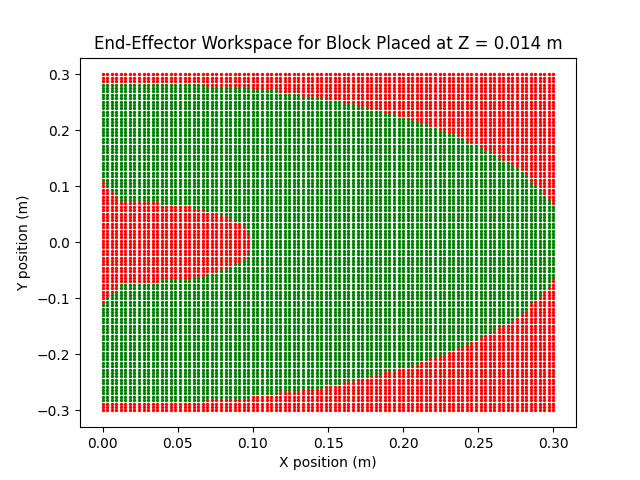 Middle of First Block | 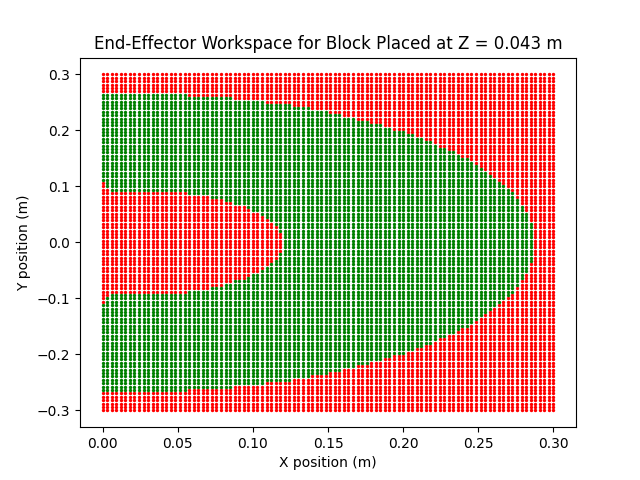 Middle of Second Block |
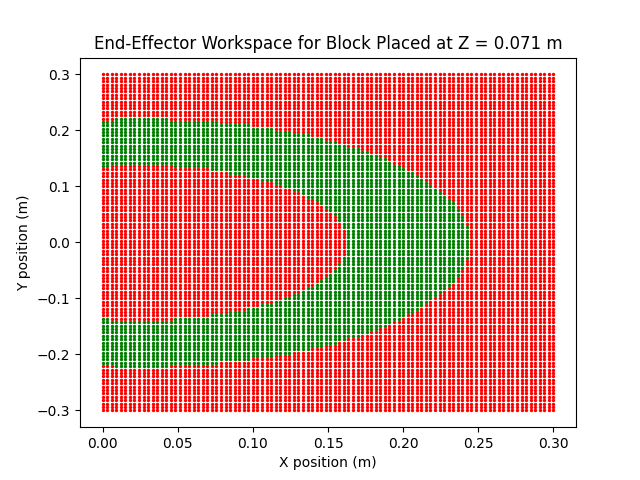 Middle of Third Block | 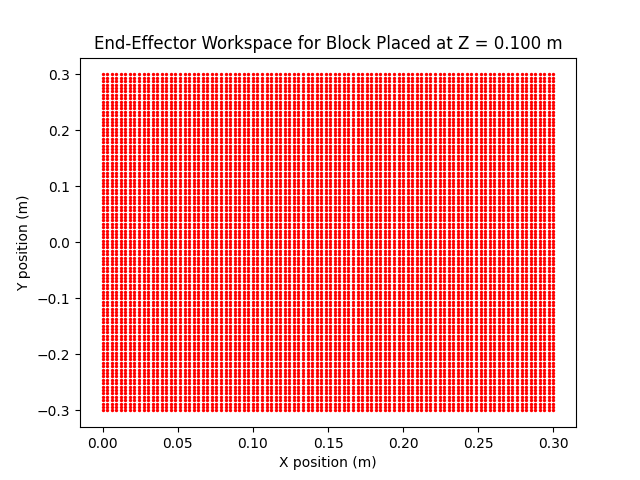 Middle of Fourth Block |
Your final video submission should look something like this:
4c) (Optional) Stack Three Blocks
If you want an extra challenge, try stacking three blocks instead of two! You will need to make sure that your block and target positions are all within the workspace of the manipulator arm at their respective heights.
Proof that it’s possible:
Suggested Improvements
There are a few things that we can do to improve the tracking performance during our pick-and-place maneuver.
Adding Starting Configuration to move_to_pose
One suggestion is to modify the move_to_pose helper function to take in a desired starting location rather than taking the readings from the encoders as the starting location. This will reduce the discontinuity that occurs from the steady-state error.
def move_to_pose(bus, starting_position, desired_position, duration):
    start_time = time.time()

    while True:
        t = time.time() - start_time
        if t > duration:
            break

        # Interpolation factor [0,1] (make sure it doesn't exceed 1)
        alpha = min(t / duration, 1)

        # Interpolate each joint
        position_dict = {}
        for joint in desired_position:
            p0 = starting_position[joint]
            pf = desired_position[joint]
            position_dict[joint] = (1 - alpha) * p0 + alpha * pf

        # Send command
        bus.sync_write("Goal_Position", position_dict, normalize=True)

        # (Optional) Read back
        present_pos = bus.sync_read("Present_Position")
        print(present_pos)

        time.sleep(0.02)  # 50 Hz loop
This change will need to be propogated through the rest of your code. Everywhere that you call
move_to_poseyou will need to also provide the desired starting configuration of your motion. Since this is a fairly large change, I recommend implementing it in simulation first.
Submission Details
To document this lab, please record a video of your robot executing the final pick and place behavior and upload it to youtube (it can be as an unlisted video). Then please include a link to the video with the homework submission. If you scan your homework, please make sure that the link is legible. As usual, also include in your submission a writeup (included in the homework submission) about what was implemented, and any challenges/difficulties that you had when writing/executing the code. Your writeup should also include diagrams of your geometric inverse kinematics solution with labeled lengths and angles for $\theta_1$, $\theta_2$, and $\theta_3$. Lastly, please include a brief description of your plan for the final project, including what robot task you are thinking of doing with your group and which concepts you plan to implement from class.